

Steps
- Open the PrigeeX app in your browser.
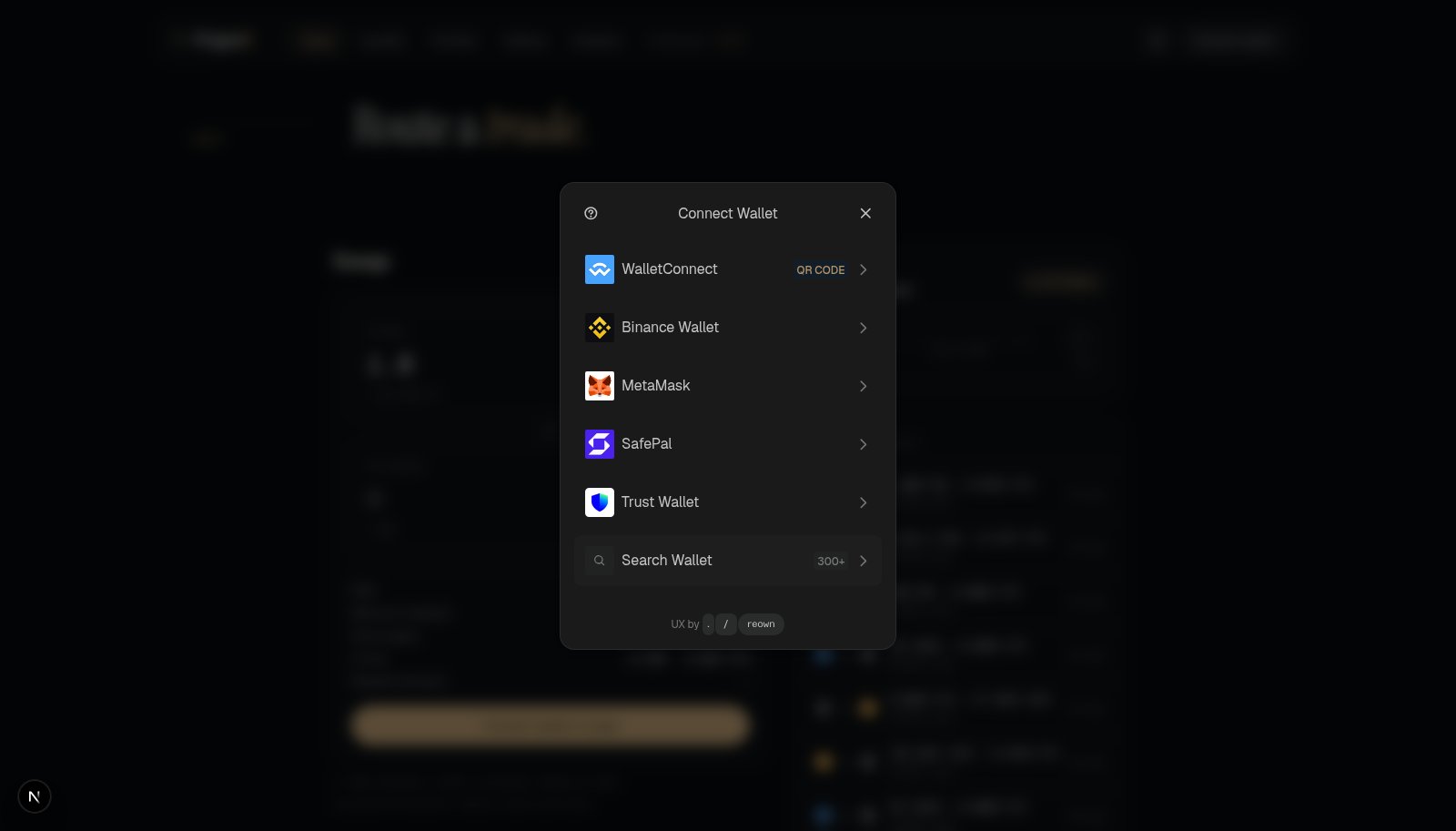
- Click Connect Wallet in the top-right corner.
- Choose your wallet (MetaMask, Coinbase Wallet, or WalletConnect for others).
- Your wallet pops up asking you to approve the connection. Click Connect / Approve.
- Done. Your wallet address and PGX balance now appear in the top navigation bar.
Switch to Arbitrum if prompted
If your wallet is on a different network, PrigeeX will prompt you to switch to Arbitrum One. Click the prompt and approve the network switch in your wallet. You need to be on Arbitrum One for everything to work.What you’ll see once connected
- Your address: a shortened version like
0x1f3F...6AA4in the nav bar. - Your PGX balance: displayed next to your address.
- Your funds stay put. Connecting shows PrigeeX your public address only. Your tokens don’t move unless you approve a specific transaction.
Disconnecting
To disconnect, click your address in the nav bar and choose Disconnect. This simply “logs you out” of the app; your funds are always safe in your wallet regardless.Good to know
- Your connection persists. If you refresh the page, you’ll usually stay connected.
- Connecting is not signing away anything. The only time funds can move is when a transaction pops up in your wallet and you confirm it. If something you didn’t expect asks for approval, reject it. See Security & Safety.