

Before you start
- Your wallet is connected and on Arbitrum One
- You have the token you want to trade from
- You have a little ETH for the network fee
How to swap
- Go to the Swap page.
- In the From field, pick the token you’re paying with and type an amount.
- In the To field, pick the token you want to receive. PrigeeX instantly shows you the estimated amount you’ll get.
- Review the details (price impact, fee, slippage: explained below).
- If it’s your first time trading a particular token, you may need to Approve it first (a one-time permission). Confirm this in your wallet.
- Click Swap, then confirm the transaction in your wallet.
- Wait a few seconds. You’ll see the status update to Confirmed, with a link to view it on Arbiscan.
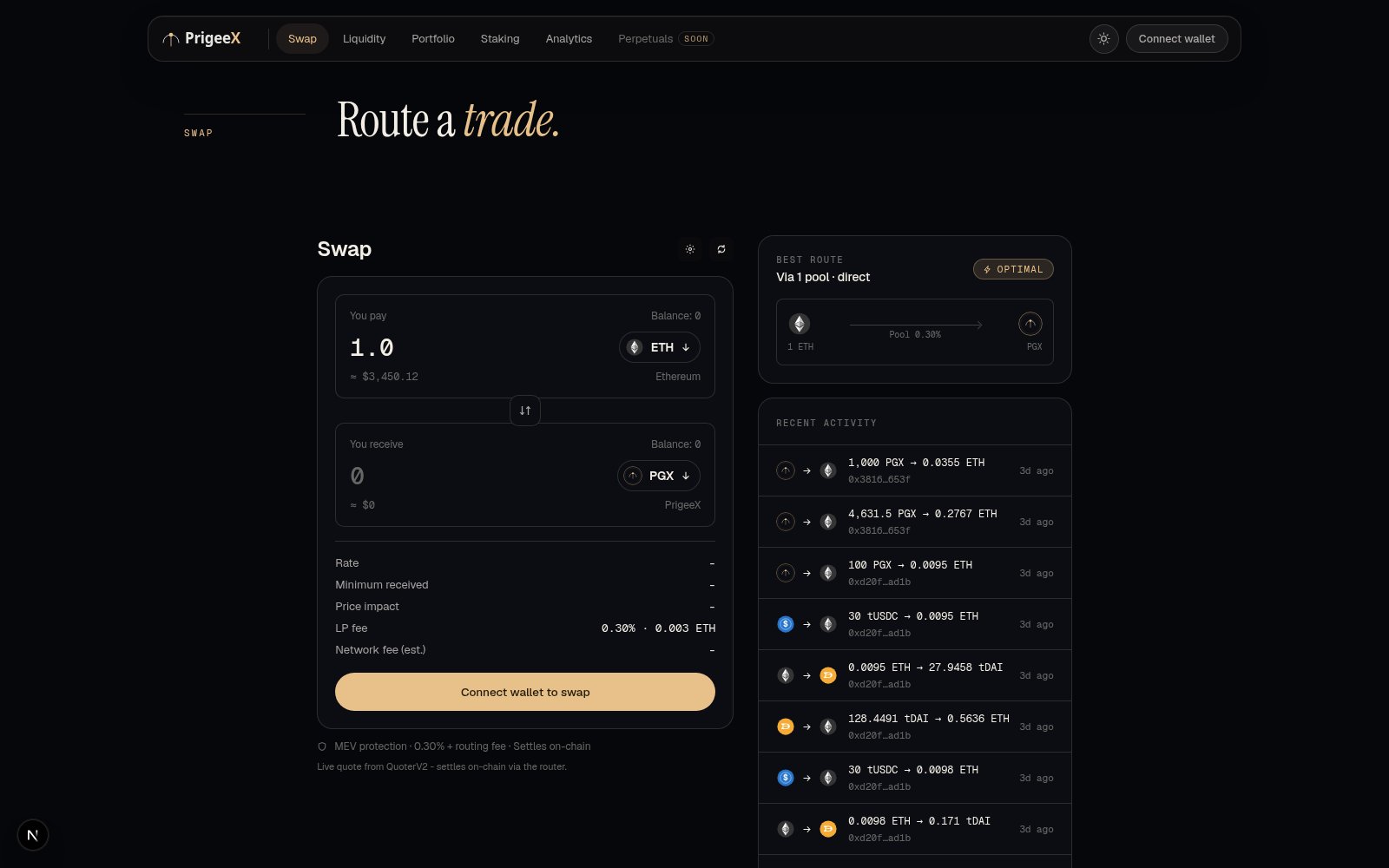
Reverse in one click. Use the small ⬍ arrow between the two fields to flip the direction of the trade instantly.
Understanding what you see
Price quote
As you type, PrigeeX shows a live estimate of what you’ll receive, updated in real time. PrigeeX automatically finds you a good price across all of its available pools (both Classic and Concentrated), so you don’t have to think about where the trade routes.Price impact (the color-coded number)
Large trades can move the market price a little. PrigeeX color-codes this price impact so you can see it at a glance:- ⚪ White (under 1%): minimal impact, good to go
- 🟡 Golden (over 1%): noticeable; consider a smaller size
Slippage tolerance
Prices can shift slightly between the moment you click and the moment the trade settles. Slippage tolerance is the maximum change you’ll accept before the trade cancels itself to protect you. The default is 0.5%, which suits most trades. You can adjust it in settings; higher tolerance means the trade is more likely to go through but at a potentially worse price.Network fee (gas)
The small ETH fee to process the trade. PrigeeX shows an estimate before you confirm. On Arbitrum this is typically just a few cents.Transaction deadline
If a trade hasn’t settled within a set time (default 20 minutes), it cancels automatically so you’re not stuck with a stale price. You can change this in settings.After the swap
The status shows Pending → Confirmed (or Failed). Once confirmed, your new tokens are in your wallet immediately. Click the Arbiscan link to see the trade on the public blockchain explorer.If something goes wrong
- The Swap button is greyed out: your wallet may not be connected, your balance may be too low, or no trading route was found for that pair. Check each.
- The trade failed: often this is slippage: the price moved more than your tolerance allowed. Try again, or raise your slippage slightly. See Fees & Gas for more on why swaps fail.